TESTS & EXPERIENCES
PhotoSweeper review: Almost 1 TB recovered – and finally order in the photo archive
Why I'm so enthusiastic about cleaning up my landscape photos with this Mac software
I went through all my landscape photos with PhotoSweeper and I'm absolutely thrilled. Over the years, duplicate files, similar shots, and numerous variations accumulate. With this software, I was able to systematically review and clean up my archive. The result is a huge improvement: After another pass with a slightly lower matching score, I was able to delete almost 1 TB of the original 3 TB. This storage space is now available to me again. The software is incredibly helpful.
My result
Almost 1 TB of the original 3 TB was deleted and then released again.
My commitment
I went through all my landscape photos with PhotoSweeper.
The practical benefits
Duplicate files and similar photos can be grouped and directly compared.
Why it's worth it
Fewer unnecessary files can postpone the next storage purchase and make the archive more organized.
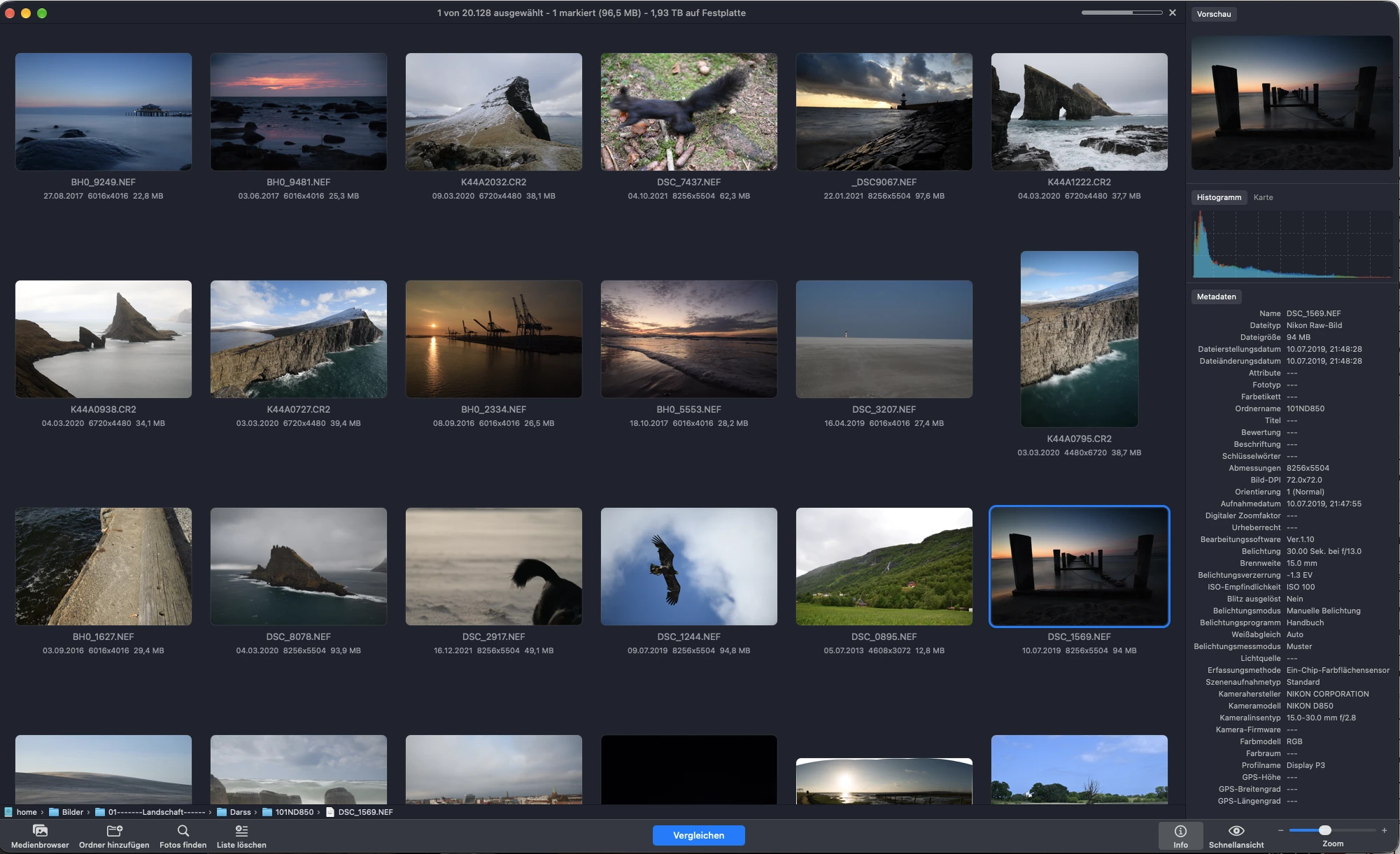
Why I finally went through my landscape archive
Anyone who's been taking photos for a long time knows the problem: the archive just keeps growing. You take multiple shots of a landscape, plus backups, exports, and edited versions. Eventually, the images take up a lot of storage space, even though you don't need every single additional file.
Therefore, I didn't want to simply buy the next hard drive, but first see what I already had. I used PhotoSweeper to go through all my landscape photos. I was absolutely amazed at how much it was able to clean up.
For me, it's not just about free space. A more organized archive also makes it easier to find the pictures I actually want to keep.
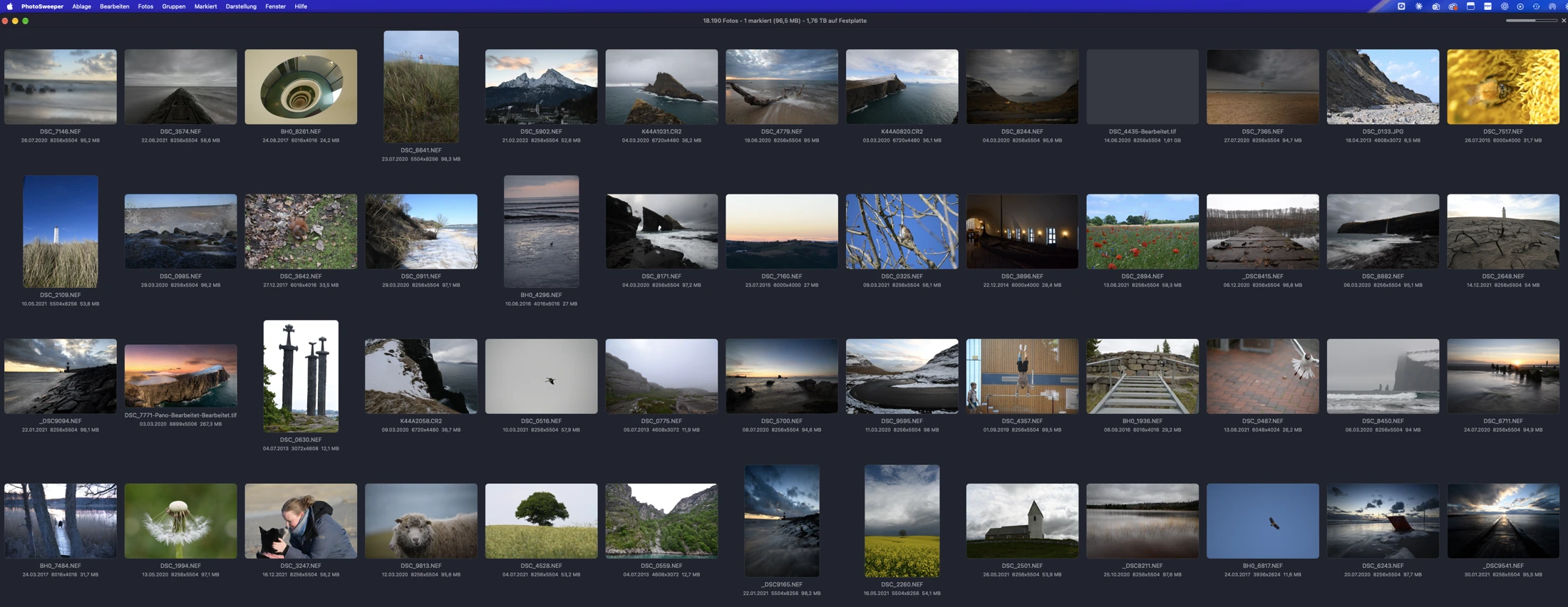
From initial success to a total of almost 1 TB of free storage
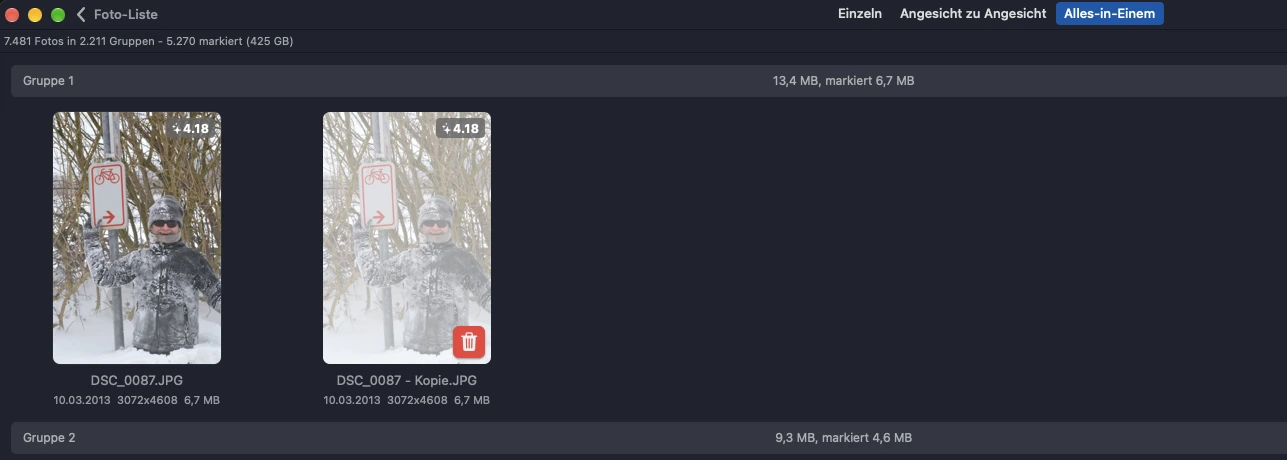
The result screenshot shows 7,481 photos in 2,211 groups and 5,270 tagged files with a total of 425 GBThis message initially documents the selection in PhotoSweeper. I subsequently deleted the files in question and freed up the storage space.
425 GB is no small amount for me. That's precisely why I'm so enthusiastic about the practical benefit: I now have a lot of space available on an existing storage device without having to buy any additional hardware.
The other screenshots are from different stages of the process and show, among other things, 1.76 TB and 1.93 TB. I'm not calculating any additional savings from these. The 425 GB was the result of my first run. After that, I ran the search again with a slightly lower match level and filtered out more images. In total, I was able to delete and free up almost 1 TB of the original 3 TB.
Search again – with a lower match score
After the initial cleanup, I ran PhotoSweeper again and lowered the match score slightly. This made even less closely matching photos interesting for review. This allowed me to eliminate many more images.
The new screenshot shows 12,737 photos in 3,550 groups and 9,187 selected files totaling 581.13 GB. The display shows the additional selection. My overall result after the subsequent deletion: almost 1 TB freed up, out of an original total of around 3 TB. The rounded figures describe my result; the displayed selection sizes are not an exact measurement of the total storage space ultimately freed.
This second pass has once again made it clear to me how helpful the adjustable comparison criteria are. Similar and less similar photos can be viewed one after the other. Especially with landscape photos, I still consciously check which versions I want to keep.

Duplicate files, similar photos, and image sequences
PhotoSweeper distinguishes between three search types. I like this aspect of the concept: An exact file copy is something different than two similar landscape photos. In my screenshot, the "Duplicate Files," "Similar Photos," and "Image Sequence" sections are visible.
Especially with landscape photos, shots can look very similar at first glance, yet still have an important difference: a different wave, changed light, or a deliberately different exposure. That's why grouping helps me with the selection. The decision of which image I want to keep remains with me.
Function Overview
| Function | What it does | Use in the photo archive |
|---|---|---|
| Duplicate files | Find identical files. | Useful for multiple copies. |
| Similar Photos | Compare visually similar images in groups. | It helps with variations of a motif; similar does not automatically mean superfluous. |
| Image sequence | Group recordings according to time intervals. | Interesting for series and multiple images of the same situation. |
| Comparison settings | Narrow down the search by size, aspect ratio, format, filename, time interval, and degree of match. | The criteria shown in the dialog can be adapted to your own inventory. |
| Results views | Individually, face to face, and all-in-one. | Different views for viewing the groups found. |
| Preview and information | View image preview, histogram, and metadata. | Supports the evaluation of files before selection. |
| Auto Mark and Auto Lock | According to the manufacturer: rule-based marking and protection of already sorted images from being marked. | Other options for large collections; the rules should suit your own selection. |
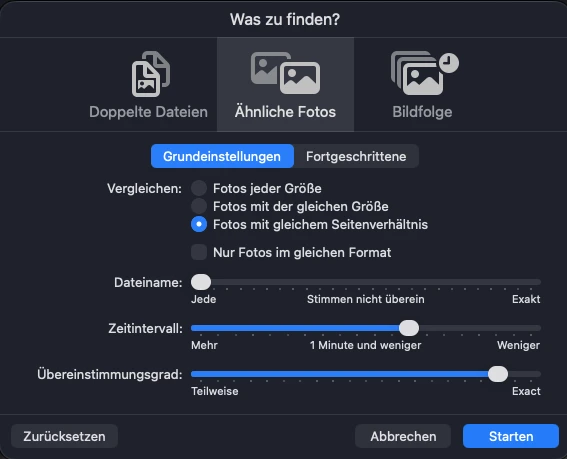
Adjust the comparison to your own images
The settings dialog shows that the search can be narrowed down quite precisely. In my screenshot, "Photos with the same aspect ratio" is selected. Additional restrictions are available for the format, as well as sliders for filename, time interval, and degree of match.
This makes sense for an established archive: someone who only wants to remove exact copies has a different goal than someone who views several variations of a sunset. I think it's good to be able to approach these tasks with different criteria.
The software displays a continuous photo comparison during the analysis. I didn't record a measured search time for this report; my enthusiasm stems from the result and the help it provided in tidying up.
Preview, histogram and metadata help with selection.
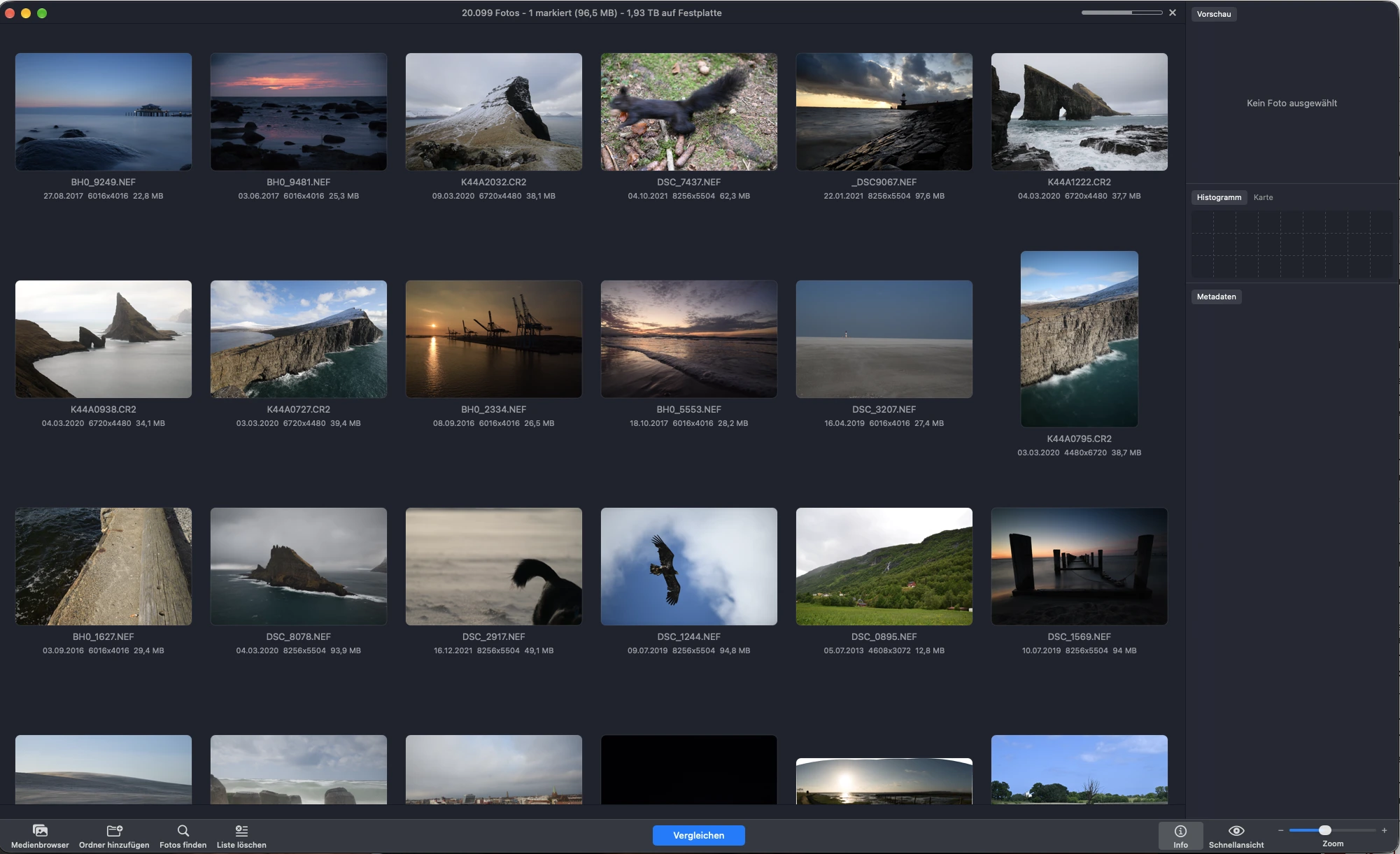
In my photo list, I can see the images and check information about the selected image on the right. My screenshot shows a preview, a histogram, and numerous metadata points, such as file size, resolution, camera model, and shooting settings.
This is much more helpful to me than a simple list of file names. I want to be able to see which recording I'm looking at before I decide which version stays in my archive.
Loud Manufacturer Overmacs PhotoSweeper works with folders and external drives, as well as Apple Photos, Lightroom Classic, and Capture One. RAW files are among the supported formats. This report documents my own archive; therefore, not every library integration mentioned represents a separate practical test.
Less used storage space can save a lot of money
Especially when additional storage is expensive, I always look at my own archive first. Recovering almost 1 TB of free space from my original 3 TB of data shows how much capacity can be reclaimed from existing storage devices. This can help postpone the next purchase of an SSD or hard drive.
In addition, there's the effort involved in creating further copies: Anything unnecessarily stored in the working archive often ends up in later backups as well. A clean archive can therefore reduce the storage space required for new backups in the long run. However, cleaning up the working archive doesn't automatically make existing backups smaller.
I can't derive a fixed euro amount from this. For that, I would need to know exactly how much storage I would have bought otherwise. Nevertheless, one thing is certain for me: I'm making better use of my existing capacity and can therefore save money. The savings come from removing unnecessary files, not from reducing the size of the original images I keep.
When tidying up, conscious selection remains important.
As enthusiastic as I am, I wouldn't equate similar photos with identical duplicates without checking. Exposure brackets for HDR or images for a panorama, in particular, can look similar and yet all be needed. Similarly, an edited image and its RAW file serve different purposes.
Therefore, I would keep an independent backup before a final cleanup and check the marked groups. For catalog-managed archives, the correct procedure via the respective photo management software is also important. Overmacs describes different processes: files from folders go to the trash, while Lightroom Classic images are first marked as rejected and grouped into a collection.
That doesn't change my positive opinion. It clarifies the benefit for me: The software helps with finding, comparing, and selecting; I decide for myself which images are valuable for my photography.
MY VERDICT
A huge gain for my photo archive
I'm absolutely thrilled with PhotoSweeper. I went through all my landscape photos and, after a second pass with a lower matching score, actually freed up almost 1 TB out of an original 3 TB. This software is a huge help. For me, the result is clearly noticeable and much more than just a little bit of order in a file list.
The combination of different search methods, customizable comparison criteria, and direct image viewing makes the software particularly useful for me. Anyone who has built up a large photo archive over the years can discover a lot of unnecessarily occupied storage space.
Before I simply buy another hard drive, I would go through my archive again with PhotoSweeper. For me, this is a compelling way to make better use of existing storage, gain a better overview, and potentially avoid additional storage expenditures.
Buy PhotoSweeper and find more information
PhotoSweeper can be purchased directly from the Apple Mac App Store on your Mac. Further information about the software can be found on the developer's website, Overmacs.
Visit the PhotoSweeper website PhotoSweeper in the Mac App Store